
- Send
/bridgein your DM with the bot. - Send
/sniperin your DM with the bot to spawn the Main Menu shown in the image below, and click on ”⇔ Bridge”.
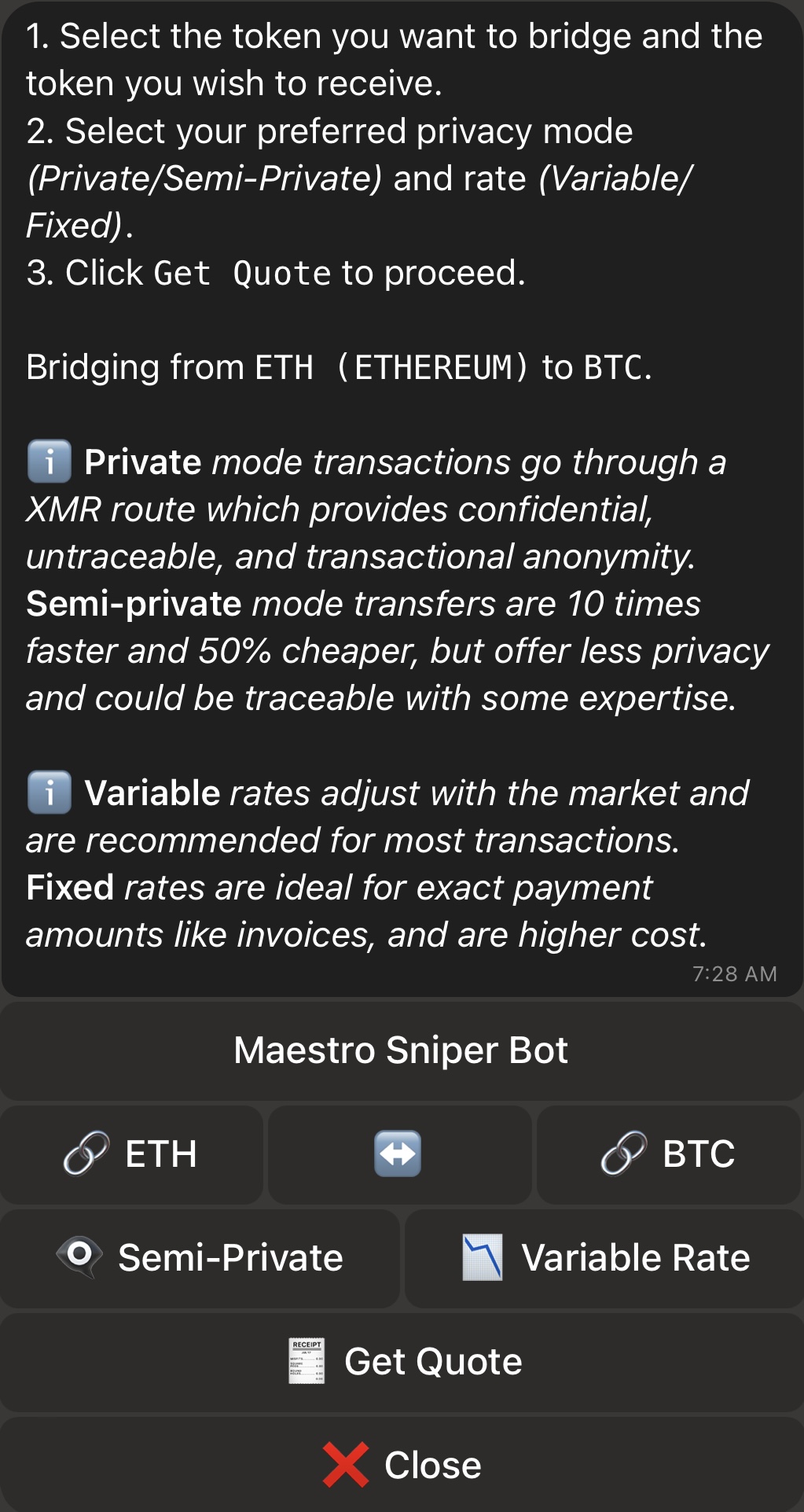
Step 1: Select Chain and Token
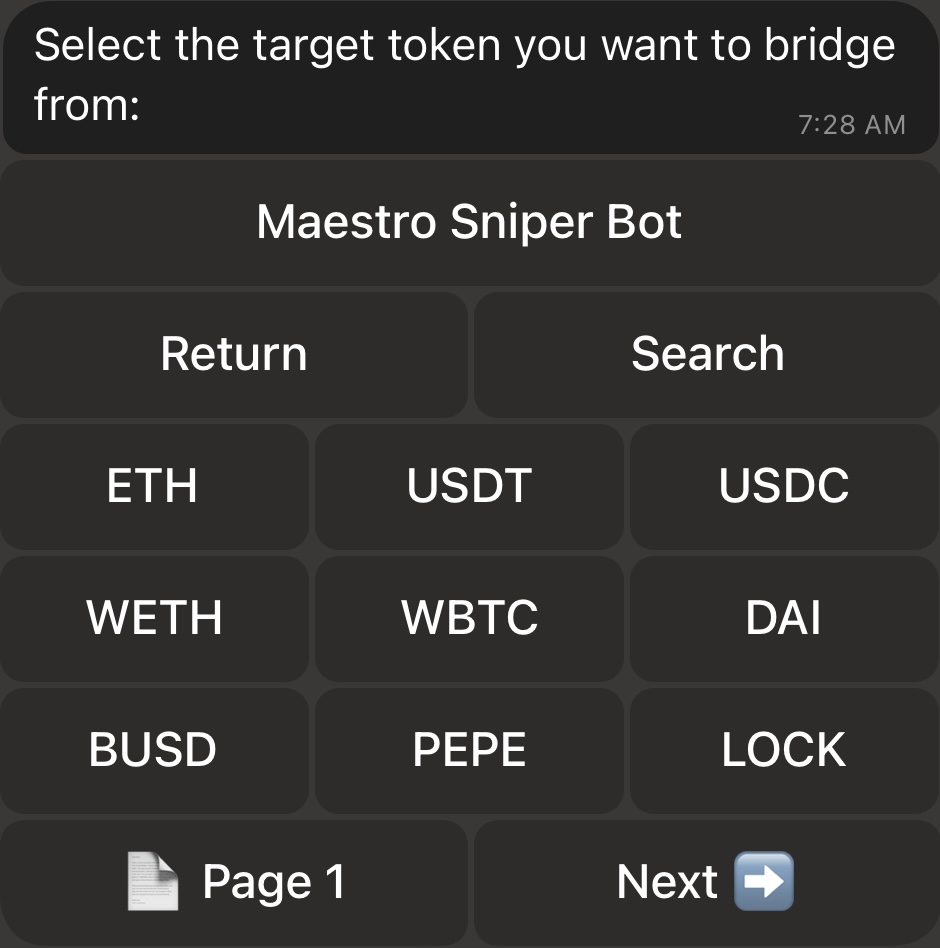
The first step is to select the chain and token both on the sending and receiving ends. For example, the image above indicates that we will be sending ETH from Ethereum and, in return, we would like receive BTC on Bitcoin. To change this default configuration, simply click on ”🔗 ETH” and the bot will display a list of chains from which you need to select the target chain that you want to bridge, send or swap from, as shown below: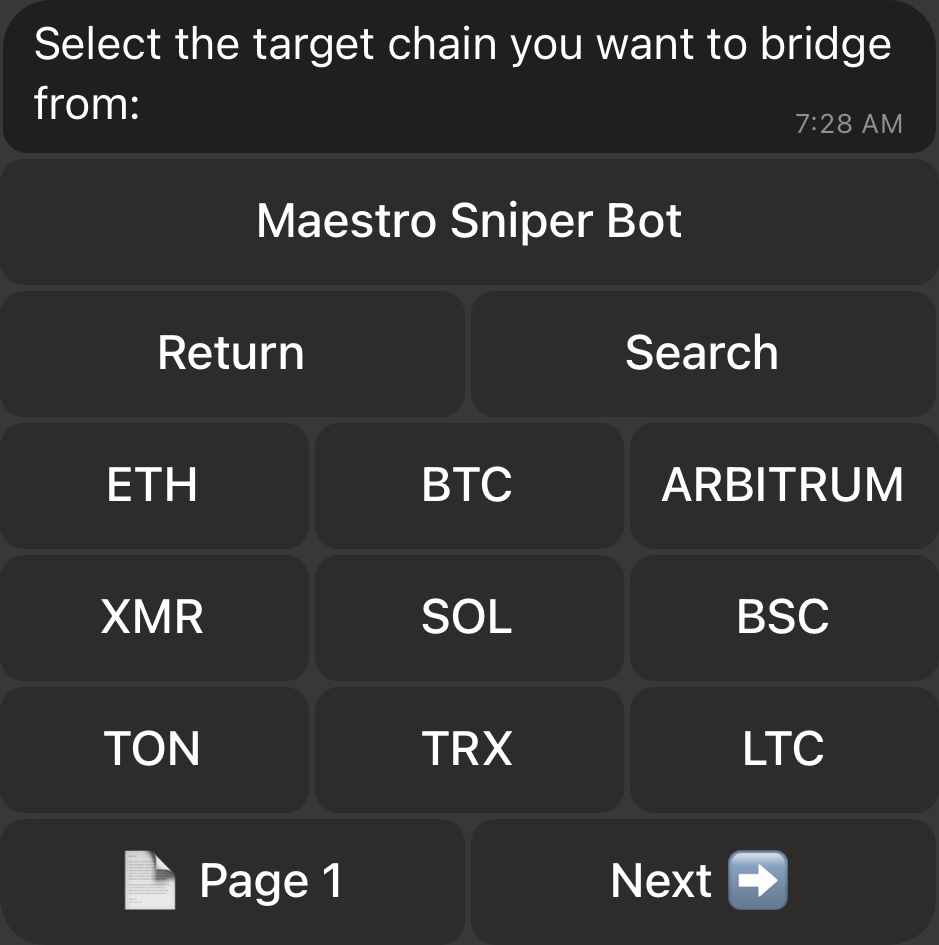
Step 2: Select Privacy and Rate Modes
The following step is to specify the Privacy and Rate modes of your order:- Privacy Mode: If you click on ”👁🗨 Semi-Private”, it will turn to ”👁🗨 Private”.
- Private: Provides transactional anonymity. In other terms, you will have exclusive knowledge of the originating wallet address and the recipient address since you select both, but this information will not be identifiable by the receiver nor by external parties. Note that it is required to select Private Mode if you’re sending AND receiving the same token on the same chain.
- Semi-Private: Provides a practical blend of privacy and efficiency by offering an enhanced privacy when compared to regular transactions, but they are not completely anonymous and can potentially be traced back to the originating wallet address with some technical expertise. However, Semi-Private transactions are about 10 times faster than Private ones and cost approximately 50% less.
- Rate Mode: If you click on ”📉 Variable Rate”, it will turn to ”📌 Fixed Rate”.
- Variable Rate: Variable rates adjust with the market and are recommended for most transactions.
- Fixed Rates: Fixed rates are ideal for exact payment amounts like invoices, and are higher cost.
Step 3: Get Quote
Now that your order details are set, click on 🧾 Get Quote, and the bot will prompt you to insert the amount of tokens that you want to send, swap or bridge. Please note that there is a minimum acceptable amount that will be displayed to you if your inserted amount was too low. With the amount set, the bot will display a quotation that shows how many tokens you’ll be approximately receiving in return for the amount that you’re sending. An example quote is show below: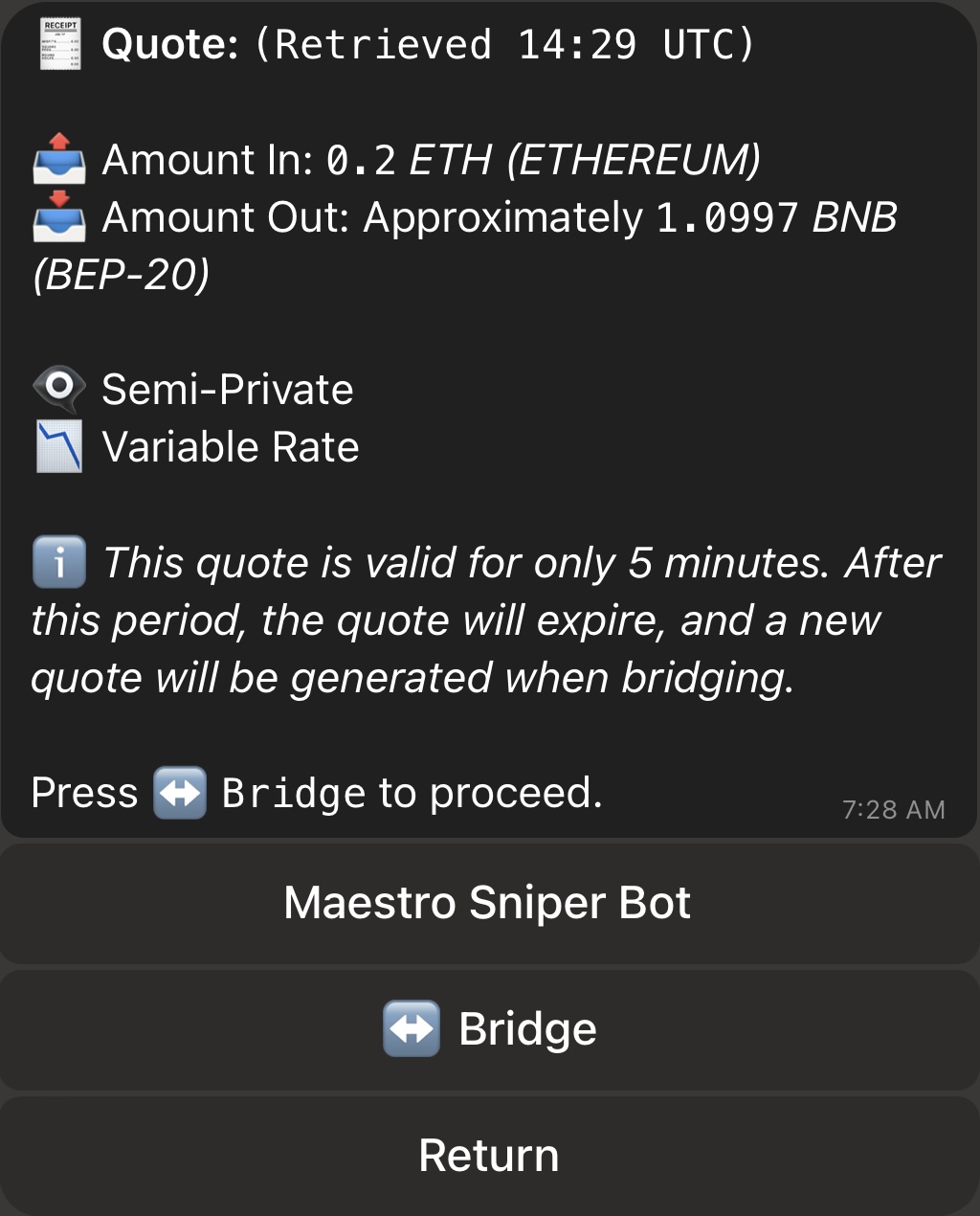
Step 4: Specify the Receiving Wallet
After clicking on ”⇔ Bridge” for a valid quote, the bot will ask you for the address of the wallet that will be receiving the tokens. In case the receiving chain is one that Maestro supports and you have wallets connected on it, the bot will also display these wallets for you to select if you wish to send, swap or bridge to one of your connected wallets, as shown below: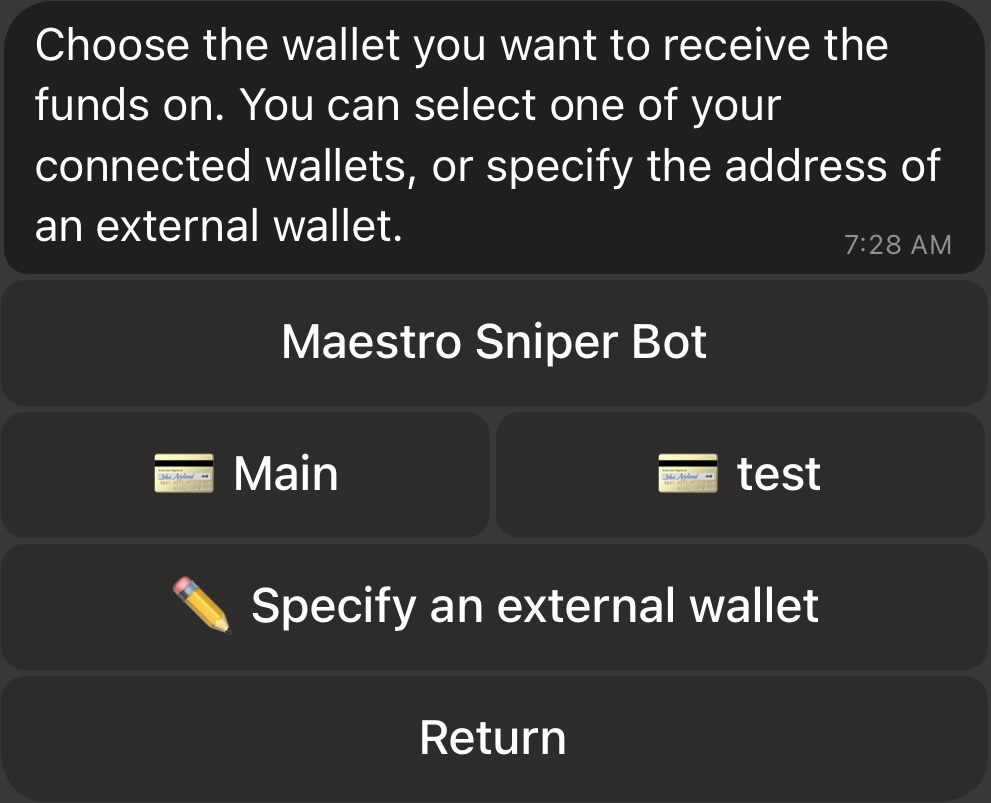
Step 5: Initiate the Transfer
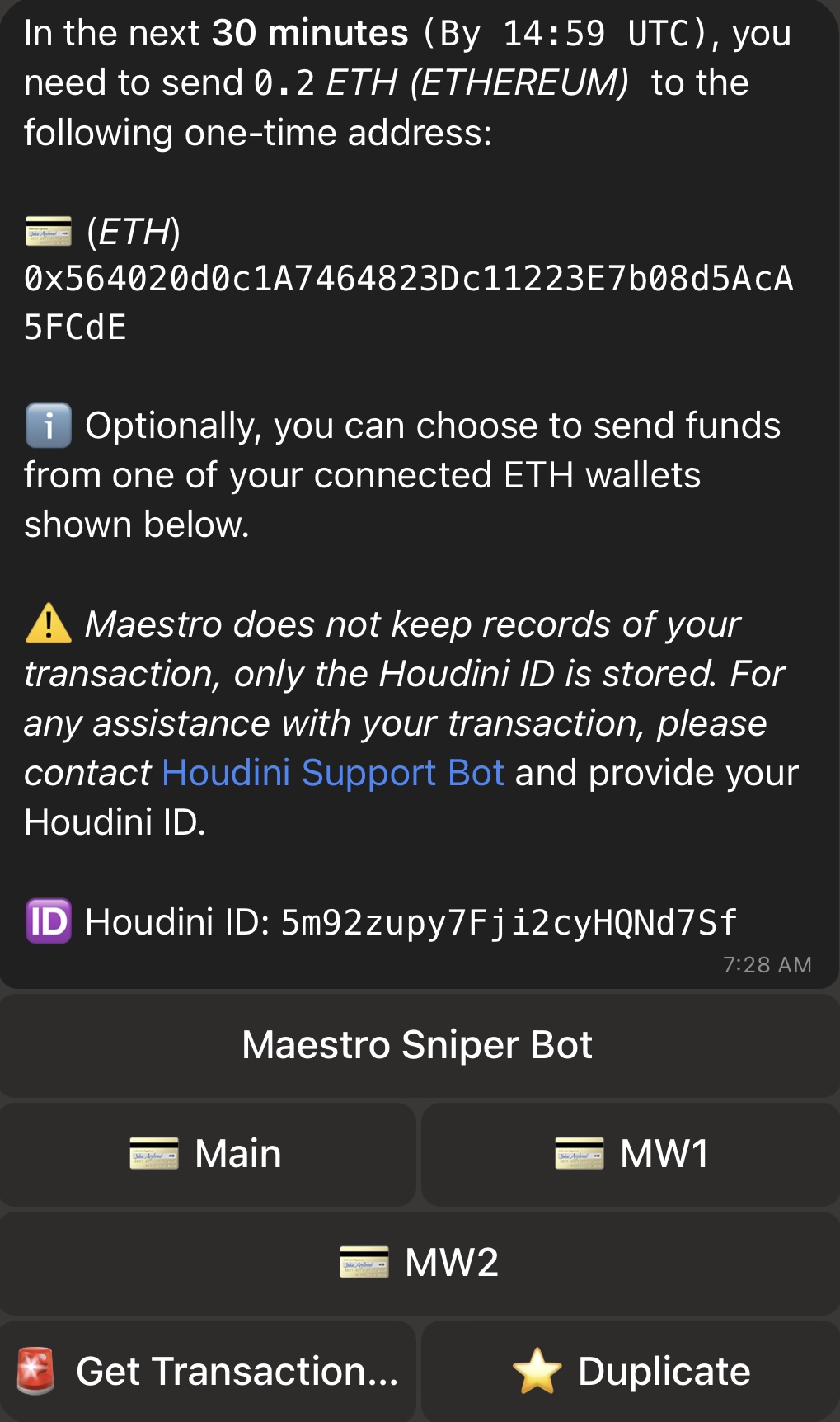
Now that you’ve selected the receiving wallet, the bot will create your Houdini order. An example is shown in the image below. The Houdini ID of your order will also be shown towards the end of the message.